1Welkom bij BIQE
BIQE AI HTR SaaS is een cloudgebaseerde correctiedienst voor handschriftherkenning (HTR). De dienst maakt van ruwe transcripties van historische manuscripten vloeiende, contextueel accurate tekst — klaar voor catalogisering, indexering of publicatie.
BIQE wordt geleverd als pay-as-you-go-dienst, zonder initiële investering. U begint met een gratis pilot van 100 pagina's op uw eigen materiaal. Daarna betaalt u per verwerkte pagina.
Voor wie is BIQE bedoeld
BIQE is speciaal ontwikkeld voor organisaties met handgeschreven archieven die gedigitaliseerd moeten worden. Onze typische klanten zijn:
Archieven
Gemeentelijke, provinciale en regionale archieven met registers, notulen en administratieve documenten vanaf de 17e eeuw.
Musea en erfgoedinstellingen
Collecties met persoonlijke correspondentie, dagboeken en historische documenten die doorzoekbaar gemaakt moeten worden.
Universiteiten
Onderzoeksprojecten die grote hoeveelheden manuscripten systematisch moeten transcriberen, zonder zelf in infrastructuur te investeren.
Scan- en servicebureaus
Digitaliseringsbedrijven die hun klanten een complete workflow willen bieden — van scan tot doorzoekbare tekst — zonder zelf LLM-expertise op te bouwen.
Ziekenhuizen en zorginstellingen
Digitalisering van historische medische dossiers en patiëntarchieven, met strenge eisen aan levering en gegevensverwerking.
Juridische kantoren
Advocatenkantoren en notariskantoren met dossiers van vóór het digitale tijdperk, die nu beter toegankelijk gemaakt moeten worden voor casusonderzoek en erfgoeddocumentatie.
Hoe BIQE werkt
BIQE is een correctielaag, geen volledig nieuwe pipeline. U draait layoutanalyse en handschriftherkenning op uw eigen hardware — software die u waarschijnlijk al kent. Onze dienst neemt het over op het punt waar de meeste modellen falen: semantische correctie op basis van contextueel begrip.
Stap 1 — Lokaal
U draait layoutanalyse en HTR op uw eigen GPU. Uw scans verlaten uw locatie nooit.
Stap 2 — Correctie
Voor elke pagina stuurt u één afbeelding plus de ruwe transcriptie naar onze API via versleutelde HTTPS. Wij verwerken die met toonaangevende grote taalmodellen.
Stap 3 — Resultaat
Gecorrigeerde tekst komt binnen seconden terug. Coördinaten blijven ongewijzigd, zodat het resultaat naadloos in uw ALTO/PDF-exportpipeline past.
Wat BIQE onderscheidend maakt
Afgestemd op historisch materiaal
Onze prompts zijn ontwikkeld voor OCR van handschriften in meer dan 150 talen, van de 16e tot 21e eeuw. Voor 19e-eeuwse administratieve documenten halen we foutpercentages van 2–3% op regelniveau.
Modelonafhankelijk
Achter de schermen kiezen we automatisch tussen Gemini, Claude en andere toonaangevende LLM's, op basis van het kwaliteitsniveau dat u kiest. U hoeft zich niet bezig te houden met modelversies of leveranciers.
Geen dataretentie
Scans worden per pagina verwerkt en niet opgeslagen. Alleen anonieme statistieken (paginatelling, rekentijd) bewaren we voor facturatie en kwaliteitsbewaking.
Voorspelbare kosten
Drie heldere niveaus, transparante prijs per pagina, geen verrassingen. Maandelijkse limieten voorkomen budgetoverschrijdingen.
Flexibele integratie
Werkt als plug-in met elke HTR-pipeline die PageXML produceert. Uw bestaande processen en uitvoerformaten (PageXML, ALTO, doorzoekbare PDF) blijven ongewijzigd.
Meertalige ondersteuning
Ontwikkeld en geleverd vanuit Nederland, met directe ondersteuning in Nederlands en Engels. Beschikbaar voor klanten in heel Europa en de Verenigde Staten.
2Aan de slag in 6 stappen
Van uw eerste contact met BIQE tot productiescans in uw eigen pipeline doorloopt u drie korte fases. De meeste klanten draaien binnen een week, waarbij de pilotfase slechts één à twee uur praktische tijd vraagt.
Fase 1 · Pilotopzet
1
Vraag een pilot aan
Vul het formulier op biqe.biz in met een paar gegevens over uw collectie — taal, eeuw, documenttype. ~2 minuten.
2
Activeer uw account
Klik op de activatielink in de e-mail die we u sturen, en kies een wachtwoord van 12 tekens. ~1 minuut.
3
Stel 2FA in
Scan de QR-code met een authenticator-app, sla de herstelcodes op. ~3 minuten.
Fase 2 · Uitproberen en valideren
4
Voer uw pilotscans uit
Upload een ZIP met uw eigen materiaal. Met onze 100 gratis pilotpagina's beoordeelt u de geschiktheid voordat u zich verbindt. ~5–30 minuten per batch.
5
Vergelijk niveaus
Probeer verschillende niveaus (cheap, balanced, best) op dezelfde pagina's. Bepaal wat past bij uw collectie.
Fase 3 · Productie
6a
Voeg een betaalmethode toe
Kaart, iDEAL, SEPA-incasso of Link via Stripe. Geen kosten totdat de pilotcredits op zijn.
6b
Nodig uw team uit
Voeg collega's toe als eigenaar of lid. Iedereen krijgt een eigen login en 2FA.
6c
Genereer API-sleutels
Voor pipeline-integratie. Bewaar de sleutel in een secret manager — we tonen hem maar één keer.
Live: scans verwerken tegen het gefactureerde tarief
Pilotcredits worden eerst verbruikt; facturatie begint pas wanneer die op zijn. Geen contracten, geen opzegtermijnen.
Geen verplichtingen onderweg
U kunt op elk moment stoppen. Tot stap 4 heeft u geen investering gedaan behalve een paar minuten registratie. Na uw pilotruns kunt u beslissen of de kwaliteit past bij uw collectie — er is geen contract om te ondertekenen en geen opzegtermijn om in acht te nemen.
Ook als u live bent, betekent ons pay-as-you-go-model dat u nooit vastzit. Stop met het indienen van scans en de facturatie stopt simpelweg aan het einde van de huidige maand. Om uw account volledig te verwijderen, neemt u contact op met onze ondersteuning.
Veelvoorkomende struikelpunten uit onze supportinbox: de activatie-e-mail belandt in spam (markeer als 'geen junk'); klanten die meerdere BIQE-accounts beheren kiezen het verkeerde item in hun authenticator-app; ZIP-bestanden met wachtwoord worden geweigerd (maak ze opnieuw zonder wachtwoord); webhook-URL's die niet bereikbaar zijn over HTTPS.
3Uw account activeren
Stap 1: Vraag een pilot aan
We starten elke relatie graag met een gratis pilot van 100 pagina's op uw eigen materiaal. Dan kunnen we samen zien of de kwaliteit past bij uw collectie.
Ga naar biqe.biz en klik op Pilot aanvragen op de homepage, of gebruik het contactformulier. Vertel ons iets over uw collectie — taal, eeuw, documenttype — en wij richten een klantaccount in voor uw organisatie.
Stap 2: Ontvang uw uitnodigingsmail
Zodra uw account is aangemaakt, ontvangt u een uitnodigingsmail van BIQE Notifications <notifications@send.biqe.biz> met een eenmalige activatielink. De link is 24 uur geldig.
Belangrijk: als de e-mail niet binnen enkele minuten arriveert, controleer dan uw spam- of junkmap. E-mail van nieuwe afzenderdomeinen wordt soms in eerste instantie gefilterd. Markeer ons bericht als 'geen junk' om te zorgen dat toekomstige e-mails (facturen, betaalbevestigingen) uw inbox bereiken.
Stap 3: Activeer uw account
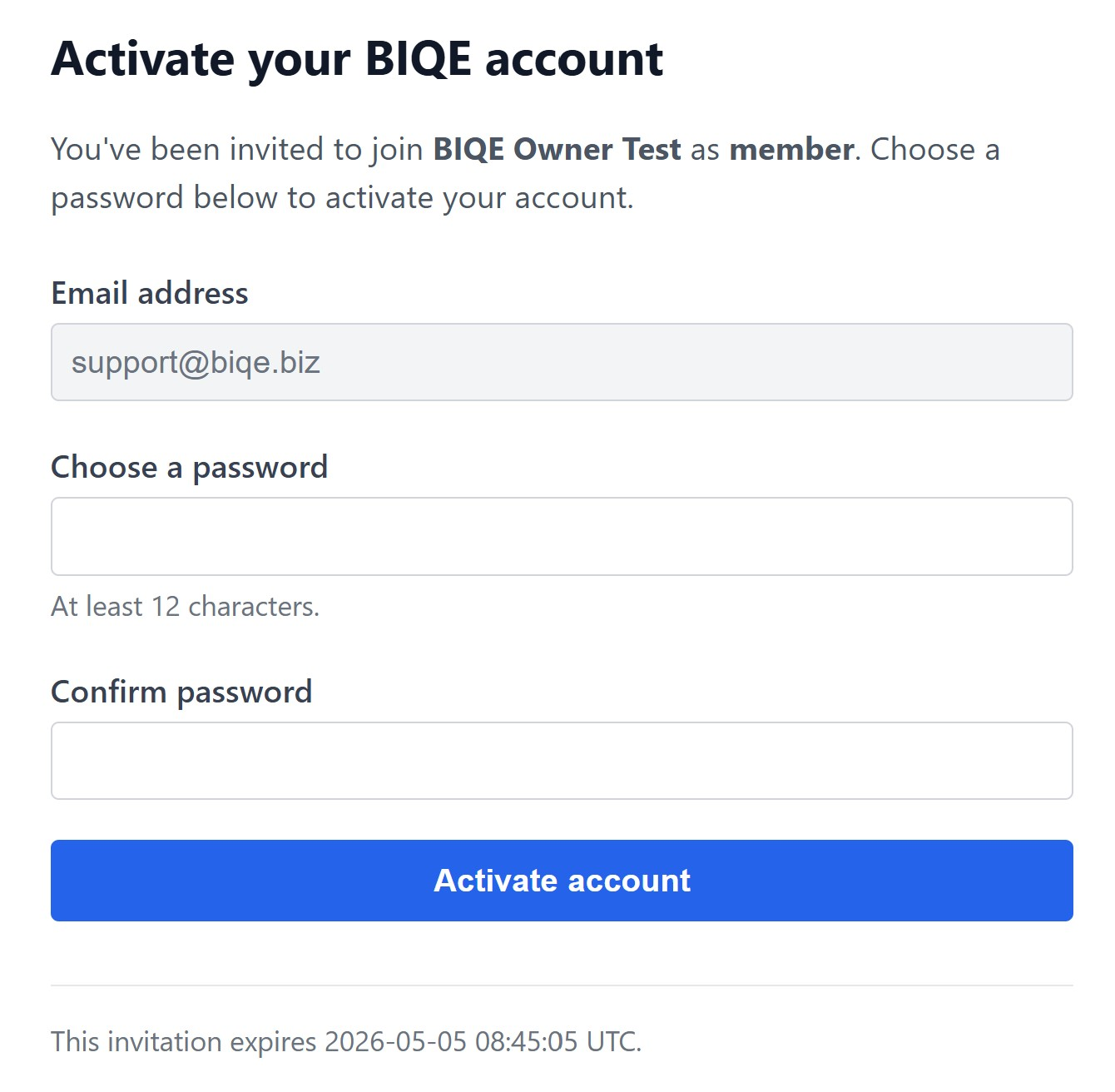
Klik op de activatielink in de e-mail. U komt terecht op een pagina waar u uw wachtwoord instelt.
Kies een wachtwoord van minimaal 12 tekens. We raden een unieke wachtzin aan, opgeslagen in een wachtwoordmanager. Uw e-mailadres is voorgedrukt en kan in deze stap niet worden gewijzigd — om een ander e-mailadres te gebruiken, vraagt u uw beheerder om een nieuwe uitnodiging.
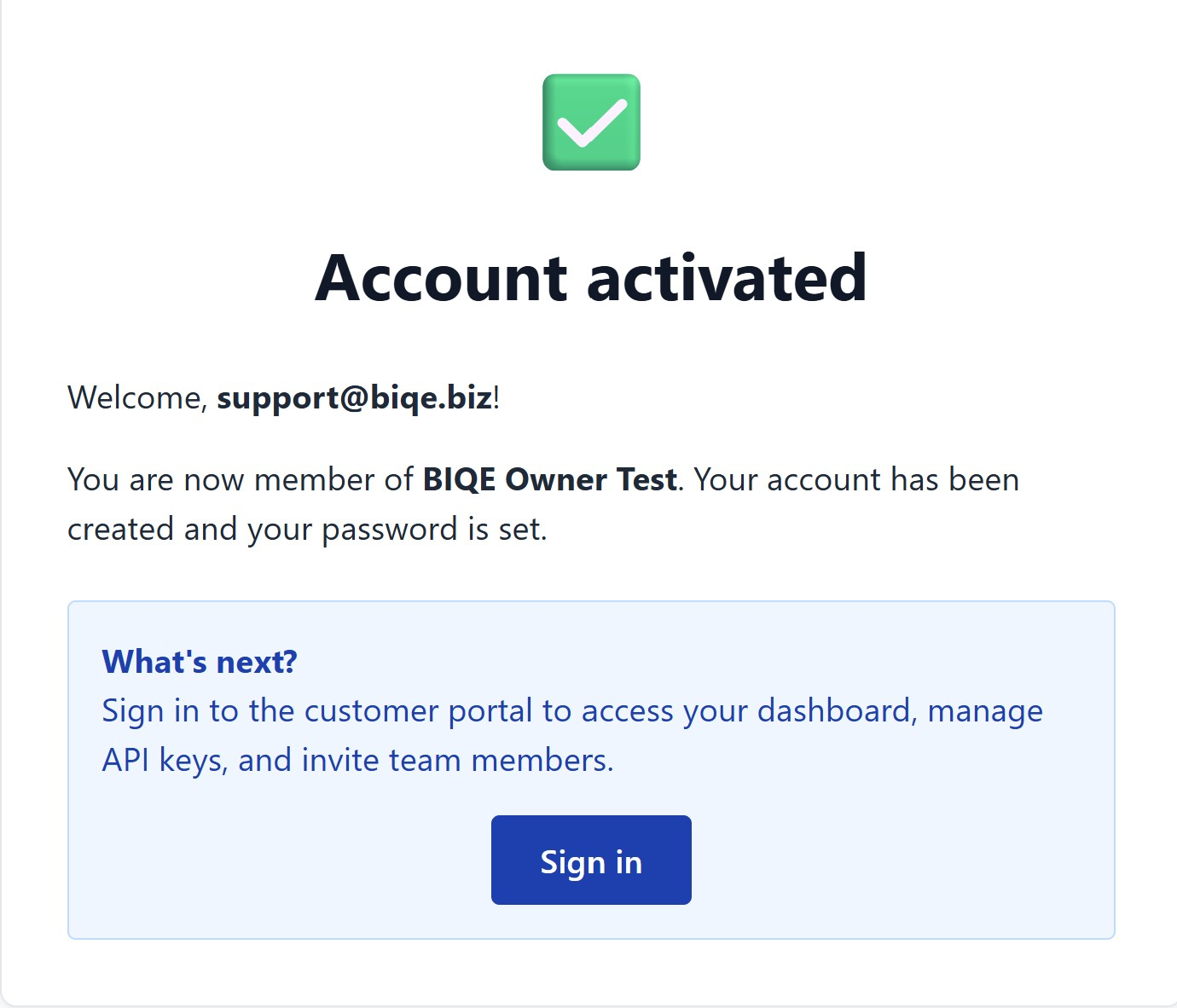
Klik op Account activeren. U ziet een bevestiging:
Stap 4: Stel tweefactorauthenticatie in
Na activatie wordt u gevraagd om tweefactorauthenticatie (2FA) in te stellen. Dit is verplicht en beschermt uw account en de gegevens van uw klanten.
Wat u nodig heeft
- Een smartphone met een authenticator-app zoals Google Authenticator, Microsoft Authenticator, Authy, 1Password of Bitwarden
- Een veilige plek voor tien eenmalige herstelcodes (afgedrukt en in een kluis bewaard, of opgeslagen in uw wachtwoordmanager)
Hoe u het instelt
- Open uw authenticator-app
- Scan de QR-code op het scherm
- Voer de 6-cijferige code uit uw app in om te bevestigen
- Bewaar de herstelcodes op de volgende pagina — ze zijn uw enige weg terug als u uw telefoon verliest
Tip: als u meerdere BIQE-accounts beheert, geef elk item in uw authenticator een duidelijk label zoals "BIQE — uwnaam@uwdomein.nl". De meest voorkomende oorzaak van mislukte tweefactor-aanmeldingen is het selecteren van het verkeerde item, niet een klokprobleem.
4Aanmelden
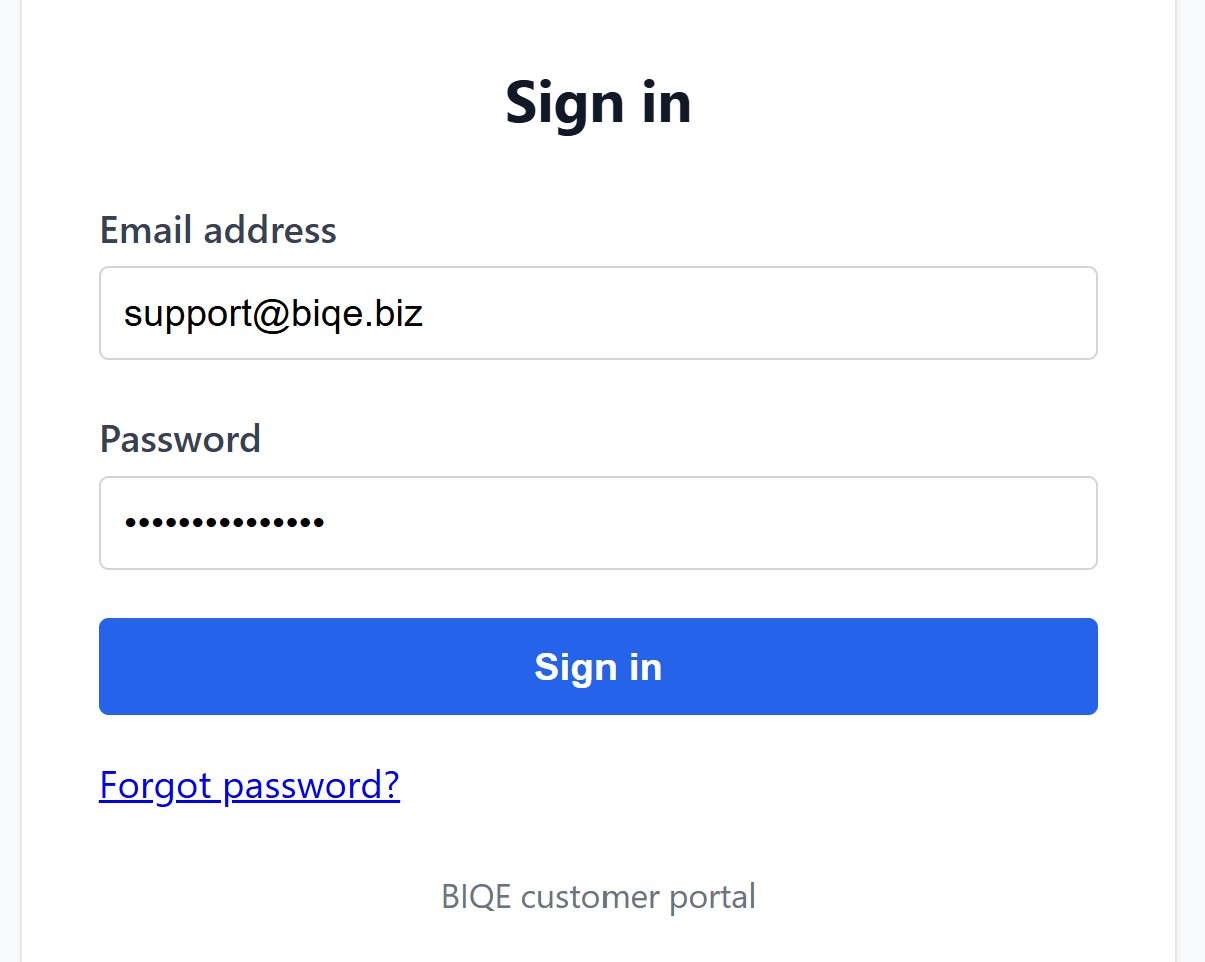
Na activatie meldt u zich aan op ocr-handwriting.online/sign-in. U heeft uw e-mailadres, wachtwoord en een verse code uit uw authenticator-app nodig.
Aanmeldstroom
- Voer uw e-mailadres in
- Voer uw wachtwoord in
- Klik op Aanmelden
- Voer de 6-cijferige code uit uw authenticator-app in
- U komt aan op het dashboard van het klantportaal
Als tweefactorauthenticatie mislukt
- Controleer of u het juiste item in uw authenticator-app gebruikt — verkeerd-item-geselecteerd is de meest voorkomende oorzaak
- Controleer of de klok van uw telefoon op automatische tijd staat (authenticator-codes zijn tijdgebaseerd)
- Als u geen codes meer over heeft, gebruik dan een herstelcode
- Als u zowel uw telefoon als uw herstelcodes kwijt bent, neem dan contact op met de ondersteuning voor een door een beheerder geassisteerde reset
Wachtwoord vergeten?
Klik op Wachtwoord vergeten? op de aanmeldpagina. We sturen een resetlink naar uw geregistreerde e-mailadres. Tweefactorauthenticatie blijft van kracht na een wachtwoordreset — uw authenticator-app blijft actief.
5Het klantportaal
Het klantportaal is uw thuisbasis. Vanaf hier dient u scans in, beheert u API-sleutels, nodigt u teamleden uit, wijzigt u accountinstellingen en bekijkt u facturen.
Beschikbare talen
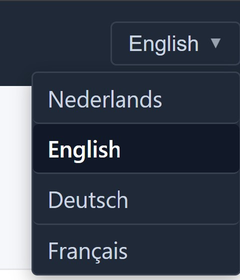
Het klantportaal en onze marketingsite zijn beschikbaar in vier talen: English, Nederlands, Deutsch, Français.
Gebruik het taalmenu rechtsboven op elke pagina om tussen talen te wisselen. Uw keuze wordt onthouden voor het volgende bezoek.
Let op: deze handleiding is beschikbaar in het Engels, Nederlands, Duits en Frans. De portal-UI zelf is volledig vertaald, en ons supportteam reageert in het Engels en Nederlands.
Hoofdgebieden
- Dashboard — overzicht van recente activiteit en pilotstatus
- Scans — nieuwe scans indienen en eerdere taken bekijken
- API-sleutels — sleutels uitgeven en intrekken voor programmatische toegang
- Teamleden — collega's uitnodigen en rollen toewijzen
- Instellingen — organisatie, account en beveiliging
- Facturatie — pilotcredits, betaalmethode en facturen
6Scans indienen
Er zijn twee manieren om materiaal bij BIQE in te dienen voor correctie:
- Web-upload — upload een ZIP met afbeeldingen via het portaal (geschikt voor incidenteel gebruik, pilots en testen)
- API-integratie — roep onze REST-API aan vanuit uw eigen pipeline (geschikt voor productievolumes; zie hoofdstuk 7)
Web-upload: een nieuwe scan starten
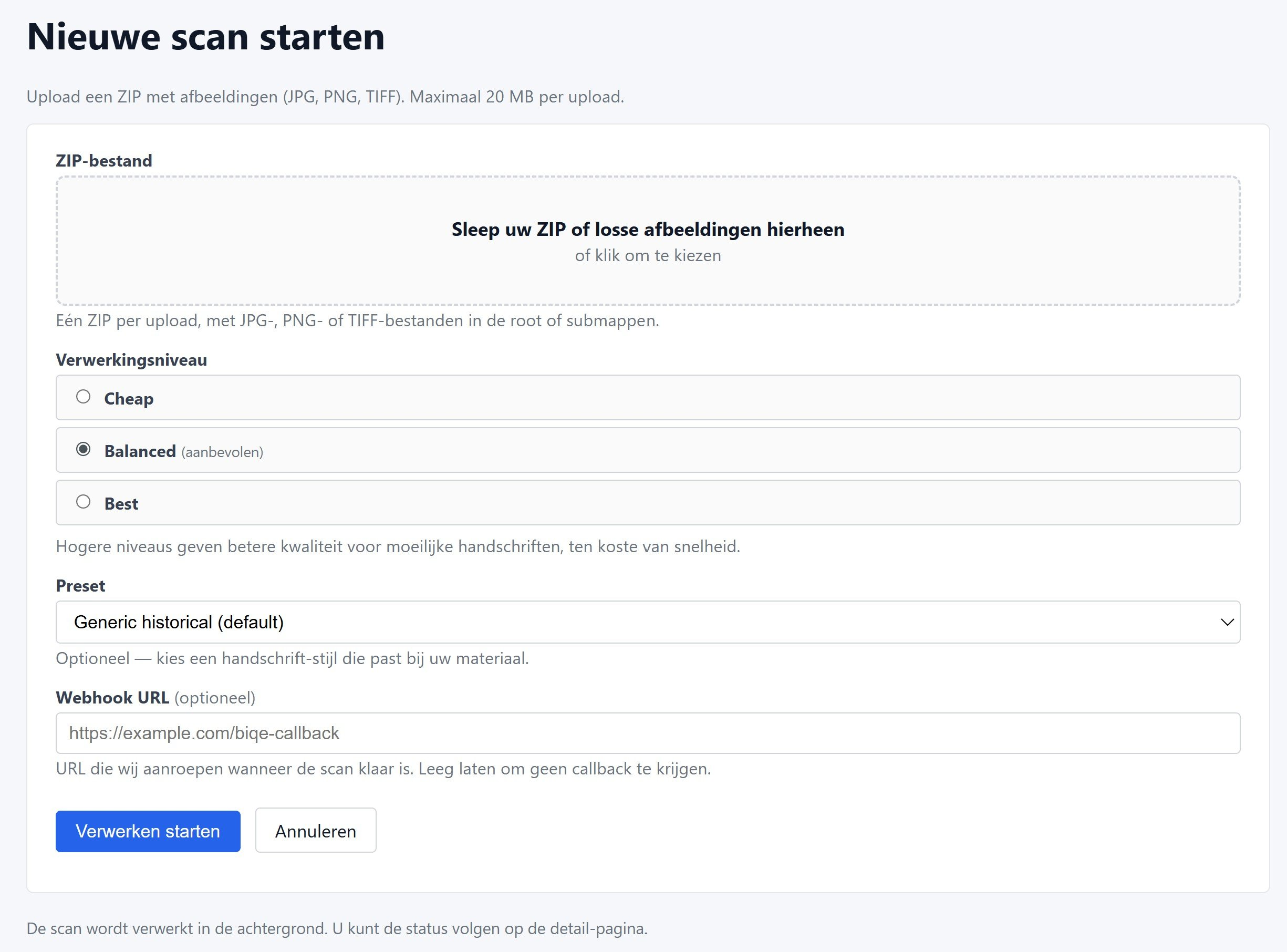
Ga in het portaal naar Scans en klik op Nieuwe scan. U ziet dit formulier:
Bestandsvereisten
- Upload één ZIP-bestand met JPG-, PNG- of TIFF-afbeeldingen
- Maximale uploadgrootte: 20 MB per upload (ongeveer 10–15 pagina's per ZIP, afhankelijk van resolutie)
- Afbeeldingen mogen in de root van de ZIP staan of in submappen
- Eén afbeelding per pagina; multi-page TIFF's zijn toegestaan
Als u geen ZIP-tool bij de hand heeft, biedt vrijwel elk besturingssysteem er een ingebouwd: rechtsklik op uw afbeeldingenmap in Windows en kies "Verzenden naar > Gecomprimeerde (zip-)map", of op macOS kies "Comprimeren".
Een verwerkingsniveau kiezen
Er zijn drie niveaus beschikbaar, met een afweging tussen snelheid, nauwkeurigheid en kosten:
| Niveau | Geschikt voor | Per pagina |
|---|
| Cheap | Bulk legacy-materiaal, moderne gedrukte tekst, of een eerste scanronde waarbij incidentele fouten acceptabel zijn. | € 0,05 |
| Balanced (aanbevolen) | De meeste archiefstukken — 18e- tot 20e-eeuws handschrift in goede staat. De standaardkeuze. | € 0,08 |
| Best | Lastig handschrift: vervaagde inkt, complexe layouts, oudere periodes of niet-Latijns schrift. | € 0,15 |
Hogere niveaus verbeteren de nauwkeurigheid op lastig handschrift, ten koste van de verwerkingstijd. U kunt niveaus mixen tussen inzendingen — bijvoorbeeld een inventarisatieronde op cheap en de interessante documenten opnieuw verwerken op best.
Een preset kiezen
Presets sturen de AI in de richting van het soort materiaal dat u verwerkt. De standaard preset, Generic historical, werkt goed voor de meeste Europese historische documenten. Andere presets zijn:
- 19th-century Dutch admin — Nederlandse administratieve documenten (registers, notulen, officiële brieven) van ongeveer 1800–1900
- Generic historical — brede terugvaloptie voor Europees historisch materiaal in Latijns schrift
- Historical diary (English) — Engelstalige persoonlijke geschriften, journalen en dagboeken
- Modern printed — gedrukte tekst vanaf de 20e eeuw
Als u twijfelt, laat de preset dan op de standaardwaarde staan. U kunt altijd een paar voorbeeldpagina's met verschillende presets indienen om te vergelijken.
Webhook-callback (optioneel)
Als u een systeem heeft dat geïnformeerd moet worden zodra de scan klaar is, vul dan een webhook-URL in. Wij sturen een JSON-payload via POST naar die URL wanneer de verwerking is afgerond. Laat het veld leeg als u geen callback nodig heeft — u kunt de status altijd controleren in het portaal.
Na inzending
Klik op Verwerking starten. U komt op een detailpagina die de live status van uw taak toont: queued, processing, vervolgens complete. Zodra die klaar is, kunt u de gecorrigeerde PageXML downloaden.
De meeste taken van één pagina zijn binnen een minuut klaar. Grotere batches worden parallel verwerkt en gaan doorgaans in een tempo van enkele pagina's per minuut, afhankelijk van het gekozen niveau.
Regels in bulk toevoegen aan een handschrift-profiel
In de viewer staat naast elke regel ook een checkbox. Vink de regels aan waarvan u zeker weet dat de transcriptie klopt; zodra u minstens één regel hebt aangevinkt verschijnt onderaan het scherm een sticky bar. Kies daar het doel-profiel en klik op Toevoegen — alle aangevinkte regels gaan in één handeling naar het profiel. Loop eerst de hele pagina door om transcripties te corrigeren, en gebruik daarna pas de bulk-toevoeging. Zie hoofdstuk 7 voor de complete uitleg over handschrift-profielen.
7Handschrift-profielen
Een handschrift-profiel is een verzameling voorbeelden die één specifieke schrijfstijl representeert — bijvoorbeeld de hand van één persoon, of de stijl van één klerk in een archief. BIQE kan die voorbeelden meegeven aan het AI-model wanneer het uw scans transcribeert, zodat de uitvoer beter is afgestemd op dat handschrift.
Wanneer een profiel waardevol is
Vooral bij grotere hoeveelheden materiaal van één en dezelfde schrijver: een familiearchief met brieven, een dagboek, notariële akten of bevolkingsregisters van één klerk, bedrijfscorrespondentie. Voor losse documenten van verschillende handen levert een profiel weinig op.
Een profiel aanmaken
Ga via het menu naar Profielen en klik op Nieuw profiel. Geef het profiel een herkenbare naam (bijvoorbeeld Brieven Jan de Vries 1880-1910) en sla op. Het profiel is daarmee leeg en klaar om voorbeelden te ontvangen.
Voorbeelden toevoegen
In de viewer staat naast elke getranscribeerde regel een knop + Voorbeeld. Als de transcriptie van de regel correct is, klikt u op die knop en kiest u het doel-profiel. Het regelfragment en de juiste transcriptie worden samen als één voorbeeld opgeslagen. Een onjuiste transcriptie traint het model verkeerd, dus controleer eerst.
Voor pagina's met veel correcte regels is er ook een bulk-toevoeging beschikbaar (zie het einde van hoofdstuk 6).
Gedeelde handschrift-modellen
Op de detailpagina van elk profiel staat een schakelaar "Mijn voorbeelden bijdragen aan gedeelde handschrift-modellen". Deze is standaard uit. Wanneer u hem aanzet:
- Uw voorbeelden worden geanonimiseerd toegevoegd aan een gedeelde pool, gegroepeerd op taal × eeuw × schrifttype × domein.
- In ruil ontvangt u voorbeelden uit dezelfde pool van andere klanten met vergelijkbaar handschrift. Bij elke transcriptie selecteert het systeem maximaal tien voorbeelden die het meest op de huidige regel lijken.
- Niet gedeeld worden: uw profielnaam, organisatie, en de specifieke pagina of het document waaruit het voorbeeld komt.
De uitwisseling is wederkerig: alleen wie deelt, ontvangt. De schakelaar kan op elk moment terug naar uit; voorbeelden die u al gedeeld hebt blijven dan in de pool — wilt u die ook verwijderd hebben, neem contact op met de accountbeheerder.
Bucket-overzicht
Via Gedeelde handschrift-modellen in het menu (of direct /app/handwriting-pool) ziet u hoe rijk de pool is voor uw type handschrift: per bucket het aantal profielen en voorbeelden, volledig geanonimiseerd. Buckets met veel voorbeelden helpen u sneller; in lege buckets bent u één van de eerste bijdragers.
8API-integratie
Voor productiegebruik integreert u BIQE direct in uw bestaande HTR-pipeline. De API is REST-gebaseerd, retourneert JSON en gebruikt een API-sleutel voor authenticatie.
Stap 1: Een API-sleutel aanvragen
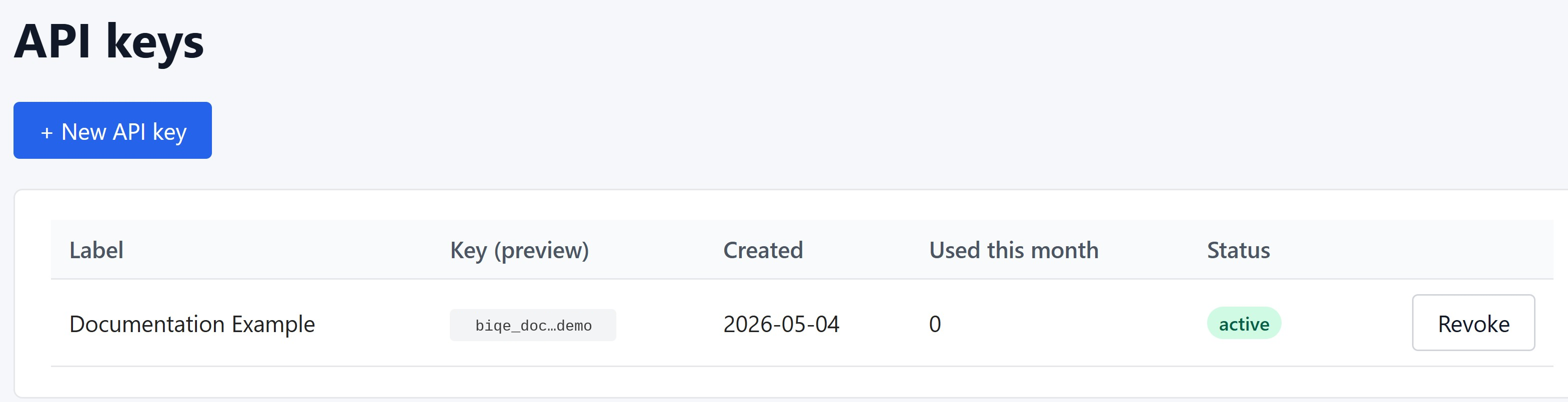
Ga in het portaal naar API-sleutels en klik op + Nieuwe API-sleutel:
U wordt gevraagd om de sleutel een label te geven (bijv. "Productieserver" of "Staging"). De sleutelwaarde wordt eenmalig getoond op het moment dat u hem aanmaakt. Bewaar hem in een secret manager zoals AWS Secrets Manager, HashiCorp Vault of GitLab CI-variabelen — wij kunnen hem niet nogmaals tonen.
Behandel API-sleutels als wachtwoorden. Plaats ze nooit in versiebeheer. Deel ze nooit per e-mail of chat. Roteer ze elke 90 dagen als routine, en direct als u vermoedt dat ze blootgesteld zijn.
Stap 2: Een scan indienen
Authenticeer door de sleutel mee te sturen in de X-API-Key-header bij elke request. Dien pagina's in als ZIP-archief.
curl -X POST https://ocr-handwriting.online/v1/process-scan \
  -H "X-API-Key: $BIQE_API_KEY" \
  -F "zip=@my-pages.zip" \
  -F "tier=balanced" \
  -F "preset=generic_historical" \
  -F "webhook_url=https://your-system.example/biqe-callback"
De respons is 200 OK met een JSON-body:
{
  "job_id": "ff6f3db8-ab61-47d0-9f69-1987b5b0f2f0",
  "state": "queued",
  "page_count": 14,
  "tier": "balanced",
  "preset": "generic_historical",
  "submitted_at": "2026-05-02T11:56:05Z"
}
Stap 3: De taakstatus volgen
Pol de status, of wacht op de webhook-callback.
curl https://ocr-handwriting.online/v1/jobs/<job_id> \
  -H "X-API-Key: $BIQE_API_KEY"
Wanneer klaar:
{
  "job_id": "ff6f3db8-...",
  "state": "complete",
  "page_count": 14,
  "pages_completed": 14,
  "completed_at": "2026-05-02T11:57:43Z",
  "result_url": ".../result"
}
Taakstatussen
| Status | Betekenis |
|---|
queued | Geaccepteerd; wacht op een worker. |
processing | Pagina's worden verwerkt. |
complete | Alle pagina's geslaagd; result_url ~7 dagen beschikbaar. |
failed | Kritieke fouten. Niet gefactureerd. |
Webhook-payload
Als u een webhook_url heeft opgegeven, sturen we deze JSON via POST wanneer de taak is afgerond:
{
  "job_id": "ff6f3db8-...",
  "state": "complete",
  "page_count": 14,
  "completed_at": "2026-05-02T11:57:43Z",
  "result_url": ".../result"
}
We proberen mislukte afleveringen tot vijf keer opnieuw met exponentiële back-off (~1, 5, 25, 125, 625 s). Uw endpoint moet zo snel mogelijk een 2xx-statuscode teruggeven.
Stap 4: Het resultaat downloaden
curl -O -J -H "X-API-Key: $BIQE_API_KEY" \
  https://ocr-handwriting.online/v1/jobs/<job_id>/result
Levert een ZIP-archief met per ingestuurde afbeelding één gecorrigeerd PageXML-bestand, met behoud van de oorspronkelijke bestandsnamen.
Veelvoorkomende foutresponsen
| HTTP | Betekenis | Wat te doen |
|---|
400 | Ongeldig verzoek — ontbrekend veld, ongeldig niveau, etc. | Controleer de responsbody voor de specifieke reden. |
401 | Ontbrekende of ongeldige X-API-Key. | Verifieer de sleutelwaarde en omgeving. |
402 | Maandelijkse uitgavenlimiet bereikt. | Wacht tot de volgende cyclus, of neem contact op met support om de limiet te verhogen. |
413 | ZIP groter dan 20 MB. | Splits in meerdere inzendingen. |
415 | ZIP bevatte geen JPG/PNG/TIFF, of er werd geen archief geüpload. | Maak opnieuw met geldige afbeeldingsbestanden. |
429 | Rate limit overschreden. | Wacht en probeer opnieuw; controleer de Retry-After-header. |
5xx | Probleem aan onze kant. | Probeer opnieuw met exponentiële back-off; neem contact op met support als het aanhoudt. |
Een gedetailleerde referentie, inclusief alle endpoints, parameters, responsschema's en codevoorbeelden per taal (Python, Node.js, PHP), vindt u op biqe.biz/api-docs.
9Uw team beheren
BIQE ondersteunt meerdere teamleden per organisatie. Elk lid heeft een eigen login, wachtwoord en tweefactorauthenticatie.
Een teamlid uitnodigen
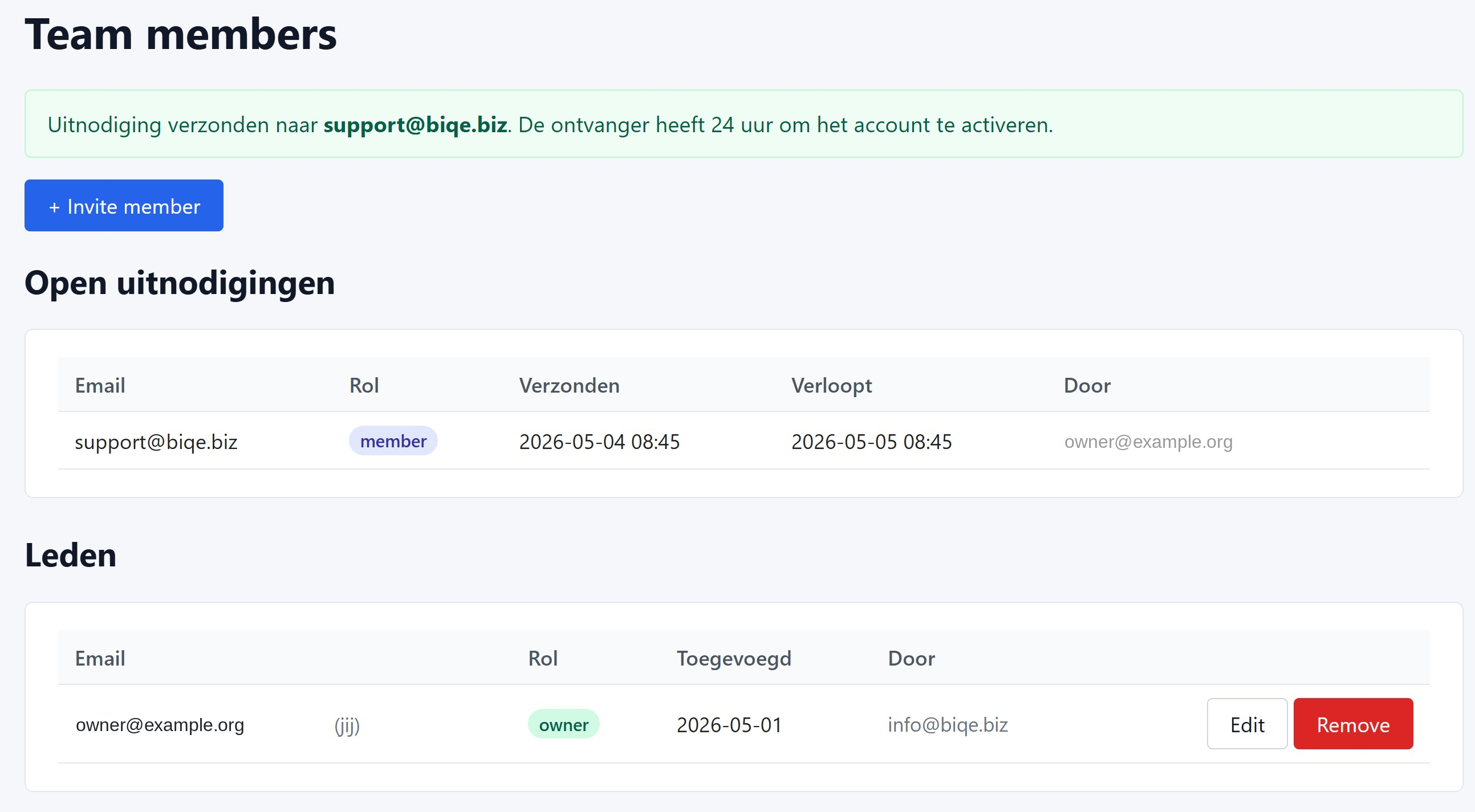
- Ga in het portaal naar Teamleden
- Klik op + Lid uitnodigen
- Voer het e-mailadres van uw collega in
- Kies een rol (zie hieronder)
- Klik op Uitnodiging versturen
Uw collega ontvangt een uitnodigingsmail met dezelfde activatiestroom die u zelf heeft doorlopen. De uitnodiging is 24 uur geldig. Als die verlopen is, stuurt u eenvoudig een nieuwe.
Een lid verwijderen
Klik op de pagina Teamleden op Verwijderen naast het lid dat u wilt verwijderen. Hun account wordt direct gedeactiveerd. Wat zij hebben aangemaakt (ingediende scans, door hen aangemaakte API-sleutels) blijft binnen uw organisatie.
Rollen
| Rol | Rechten |
|---|
| Eigenaar | Volledige toegang. Kan scans indienen, API-sleutels beheren, leden uitnodigen of verwijderen, facturatie wijzigen en organisatie-instellingen beheren. Er moet altijd minimaal één eigenaar zijn. |
| Lid | Kan scans indienen, eerdere taken bekijken en API-sleutels gebruiken. Kan geen facturatie wijzigen of anderen uitnodigen. |
10Account & beveiliging
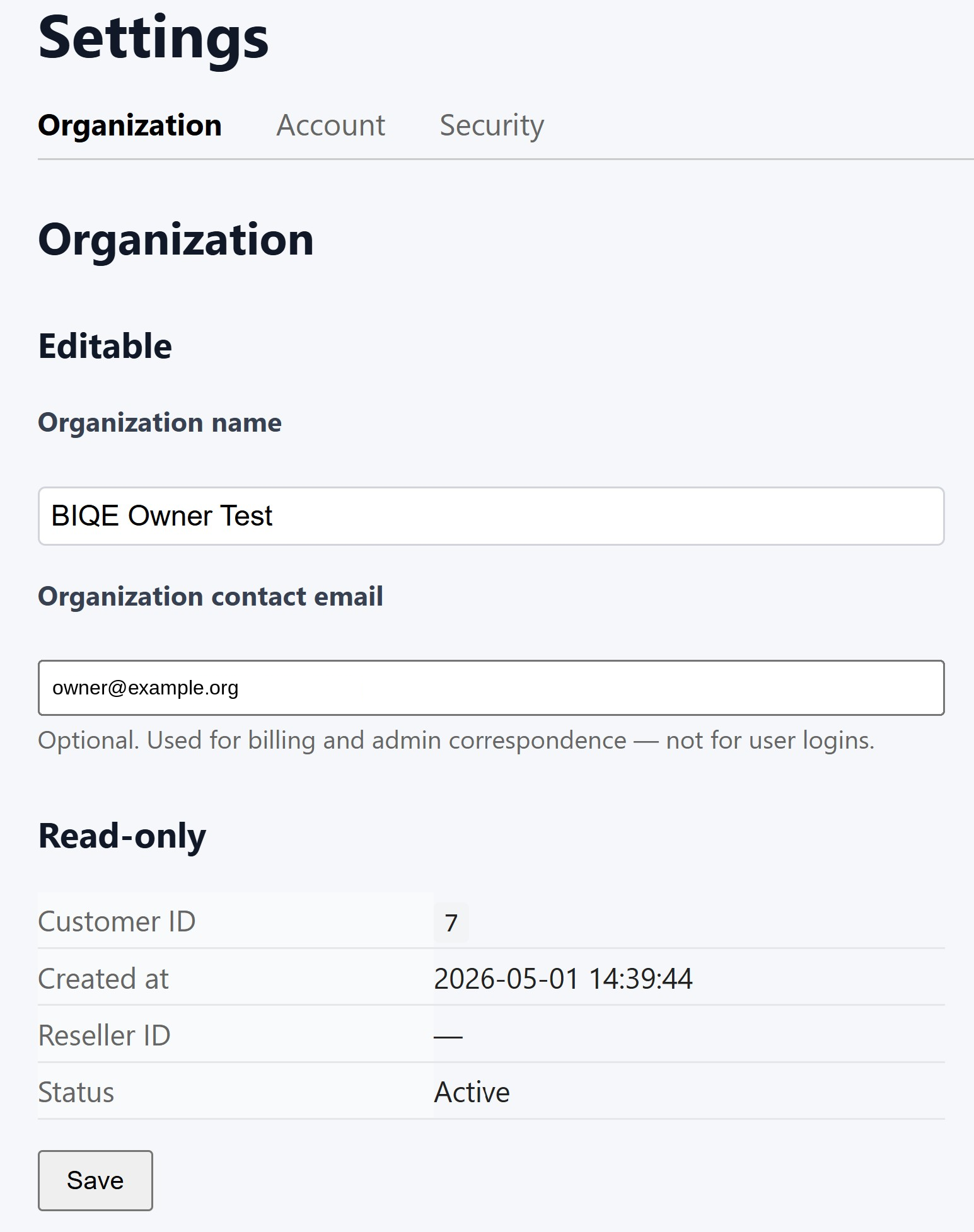
Instellingen zijn georganiseerd in drie tabbladen: Organisatie, Account en Beveiliging.
Organisatie-instellingen
- Organisatienaam — de naam zoals die op uw facturen staat
- Contact-e-mail organisatie — gebruikt voor facturatie- en administratiecorrespondentie; geen aanmeldadres
- Klant-ID, Aangemaakt op, Status — alleen-lezen referentievelden
Accountinstellingen
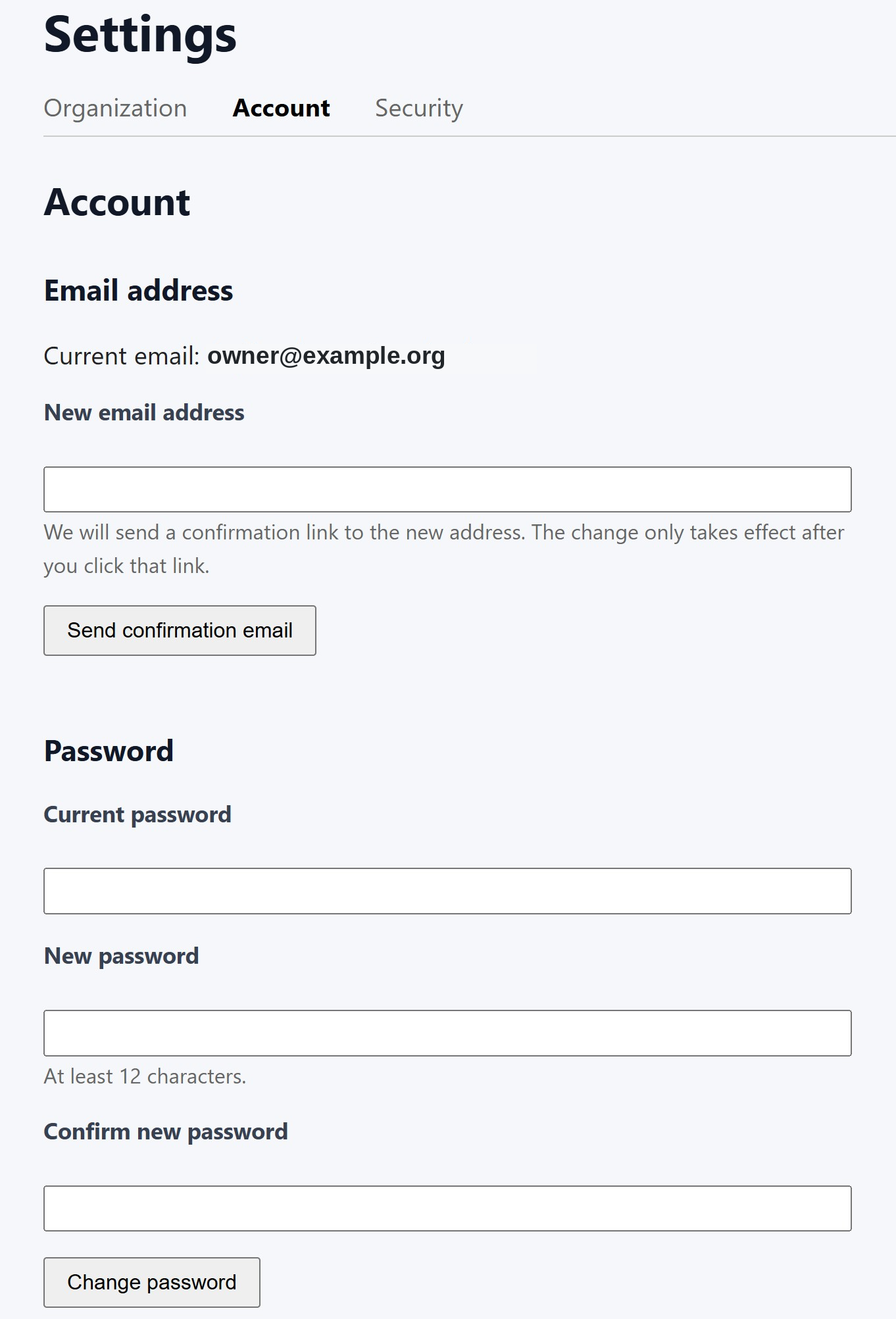
Uw e-mailadres wijzigen
Voer het nieuwe adres in en klik op Bevestigingsmail versturen. Klik op de link in die bevestigingsmail om de wijziging door te voeren. Tot u dat doet, blijft u zich aanmelden met uw oude adres. Deze tweestapsstroom voorkomt typefouten en ongeautoriseerde wijzigingen.
Uw wachtwoord wijzigen
Voer uw huidige wachtwoord in, gevolgd door uw nieuwe wachtwoord (twee keer). Nieuwe wachtwoorden moeten minimaal 12 tekens lang zijn.
Beveiliging: tweefactorauthenticatie
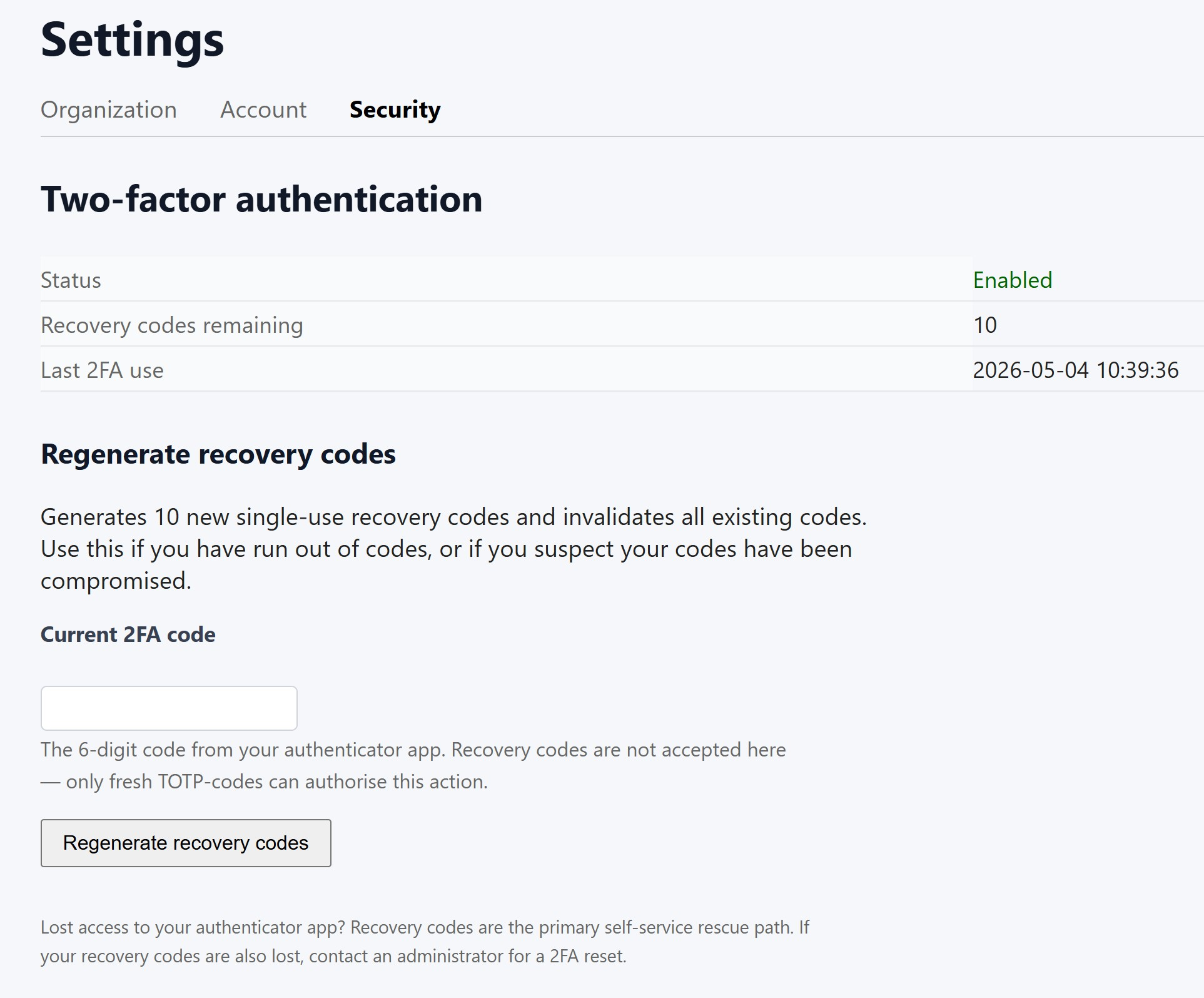
Op het tabblad Beveiliging ziet u de status van uw tweefactorauthenticatie, hoeveel herstelcodes u nog heeft, en wanneer u 2FA voor het laatst heeft gebruikt om aan te melden.
Herstelcodes opnieuw genereren
Als u de meeste van uw herstelcodes heeft gebruikt, of als u vermoedt dat ze in onbevoegde handen zijn gevallen, klik dan op Herstelcodes opnieuw genereren. U krijgt tien nieuwe eenmalige codes; alle eerdere codes worden direct ongeldig. U moet een verse code uit uw authenticator-app invoeren ter bevestiging — herstelcodes worden voor deze actie niet geaccepteerd.
Bewaar de nieuwe codes ergens veilig (afgedrukt en opgeborgen in een lade, in uw wachtwoordmanager, of allebei).
Authenticator-app verloren
Als u uw authenticator-app niet meer kunt gebruiken, zijn herstelcodes uw primaire eigen reddingsweg. Als u zowel uw telefoon als uw herstelcodes kwijt bent, neem dan contact op met support — een beheerder kan uw 2FA resetten na identiteitsverificatie.
11Facturatie & prijzen
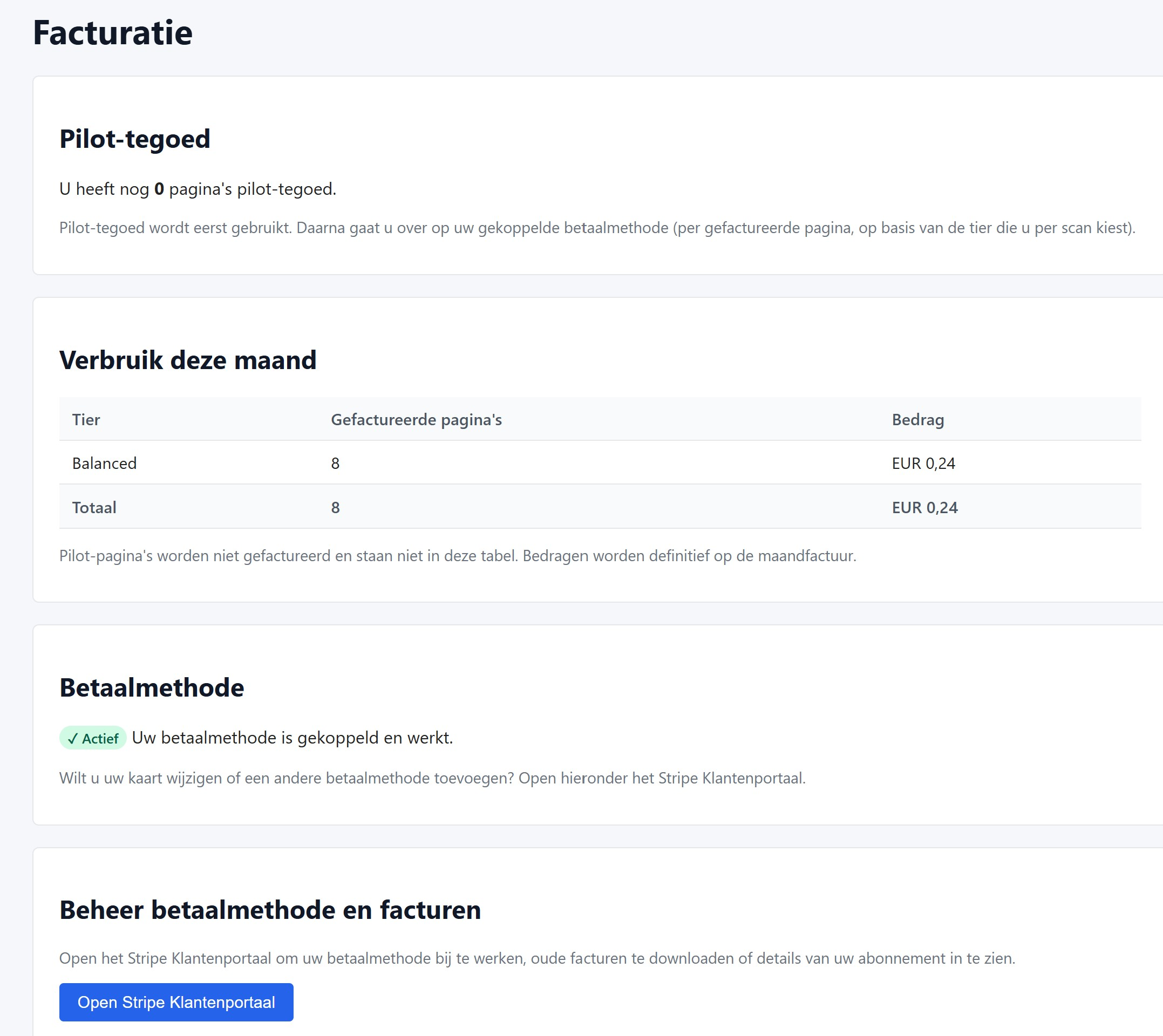
BIQE is pay-as-you-go: geen maandabonnement, geen minimumafname, geen verplichting vooraf. U betaalt per verwerkte pagina, maandelijks gefactureerd.
Pilotcredits
Elke nieuwe organisatie ontvangt 100 pilotcredits gratis. Deze credits worden eerst verbruikt; pas wanneer ze op zijn, wordt er afgeschreven van uw gekoppelde betaalmethode.
Pilotcredits vervallen niet en gelden per organisatie (niet per gebruiker). Ze zijn bedoeld voor evaluatie: probeer een steekproef uit uw collectie, beoordeel de kwaliteit en bepaal of u doorgaat.
Een betaalmethode toevoegen
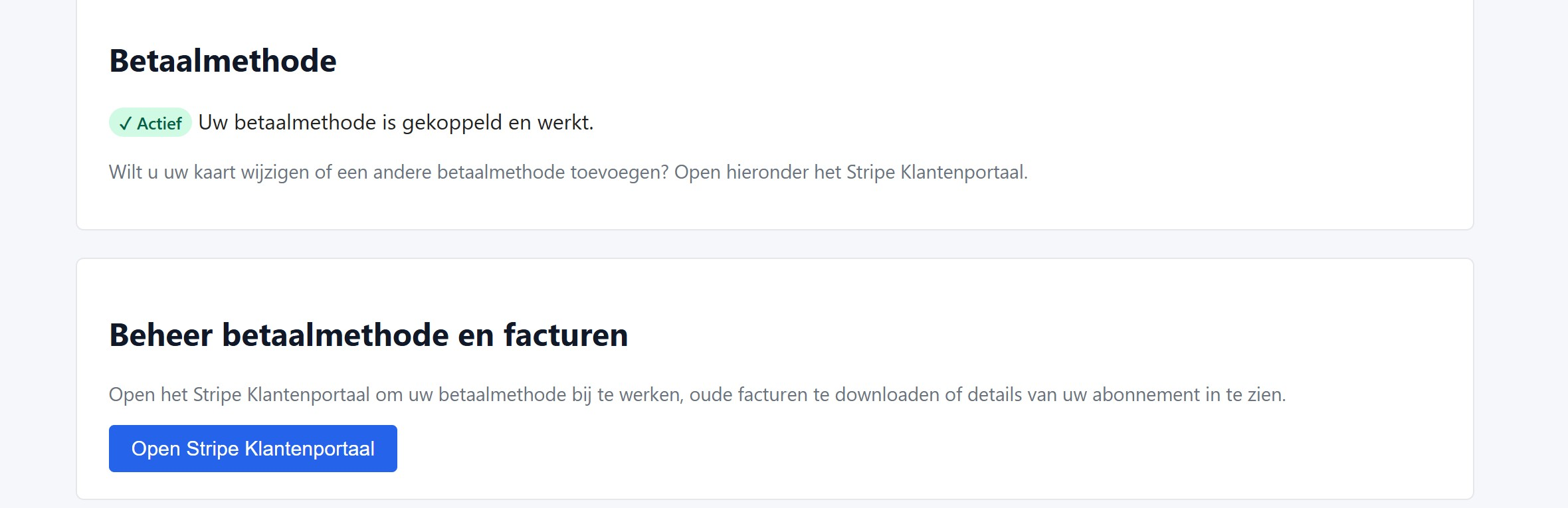
Klik op de pagina Facturatie op Betaalmethode toevoegen. U wordt doorgestuurd naar de beveiligde checkout van Stripe om uw betaalgegevens in te voeren:
- We accepteren Visa, Mastercard, American Express, Discover, iDEAL, SEPA-incasso en Link
- Kaartgegevens worden direct door Stripe verwerkt en raken nooit onze servers
- Het toevoegen van een betaalmethode brengt geen directe kosten met zich mee — facturatie gebeurt maandelijks op basis van gebruik
- We kunnen kortstondig een klein validatiebedrag autoriseren, dat automatisch wordt vrijgegeven
Zodra uw betaalmethode is gekoppeld, ontvangt u een bevestiging per e-mail:
Tarieven per niveau
| Niveau | Per pagina | Per 1.000 pagina's |
|---|
| Cheap | € 0,05 | € 50 |
| Balanced | € 0,08 | € 80 |
| Best | € 0,15 | € 150 |
Prijzen zijn inclusief BTW.
Maandelijkse limiet
Standaard heeft elke organisatie een maandelijkse uitgavenlimiet van € 1.000. Zodra u de limiet bereikt, worden verdere scans gepauzeerd tot de volgende factuurperiode, of tot u de limiet verhoogt. Dit voorkomt onverwachte kosten door verkeerd geconfigureerde pipelines. Om uw limiet aan te passen, neemt u contact op met support.
Facturen
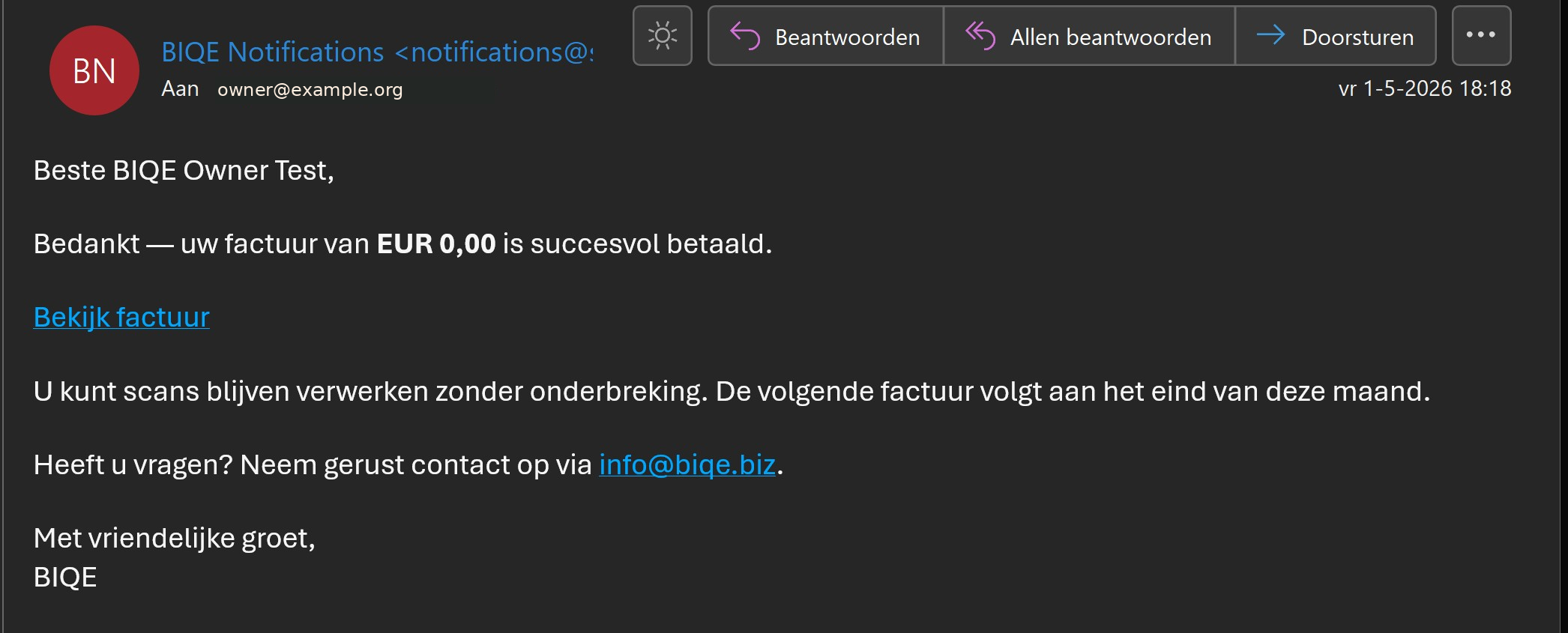
Stripe stuurt aan het einde van elke kalendermaand een factuur waarin de verwerkte pagina's per niveau zijn samengevat. U ontvangt de factuur per e-mail en de afschrijving verschijnt op uw betaalmethode. Een bevestigingsmail volgt zodra de betaling is gelukt:
Alle eerdere facturen zijn beschikbaar in het Stripe-klantportaal, toegankelijk via een link in elk van de e-mailmeldingen. Daar kunt u pdf-kopieën downloaden voor uw boekhouding.
14Ondersteuning & contact
Directe ondersteuning
Ons team is klein en we lezen alles. U bereikt ons via:
- E-mail: info@biqe.biz
- Contactformulier: biqe.biz/contact
- Post: BIQE, Nijstad 14, 8281 BB Genemuiden, Nederland
Directe ondersteuning bieden we in het Engels en Nederlands tijdens Europese kantooruren (maandag–vrijdag, 09:00–17:00 Midden-Europese tijd — CET in de winter, CEST in de zomer). Voor urgente kwesties reageren we doorgaans binnen enkele uren; routinematige vragen beantwoorden we binnen één werkdag.
Documentatie
- biqe.biz/about — hoe de technologie onder de motorkap werkt
- biqe.biz/pricing — actuele tarieven per pagina en uitsplitsing per niveau
- biqe.biz/api-docs — volledige API-referentie met codevoorbeelden
Feedback en feature requests
We zijn nog volop bezig om het product vorm te geven, en we waarderen oprecht input van echte gebruikers. Als iets onhandig is, traag, ontbreekt of beter kan, schrijf ons dan op info@biqe.biz met de onderwerpregel "Feature request" of "Feedback". We lezen elk bericht en we reageren.
— Einde van de gebruikershandleiding —
Bedankt dat u voor BIQE heeft gekozen. We kijken ernaar uit met u samen te werken.